How to Extract Data from Invoices in Power Automate
Learn how to set up a production-ready invoice processing flow in Power Automate using AI models and human-in-the-loop validation.
Ståle Zerener
Co-founder & CEO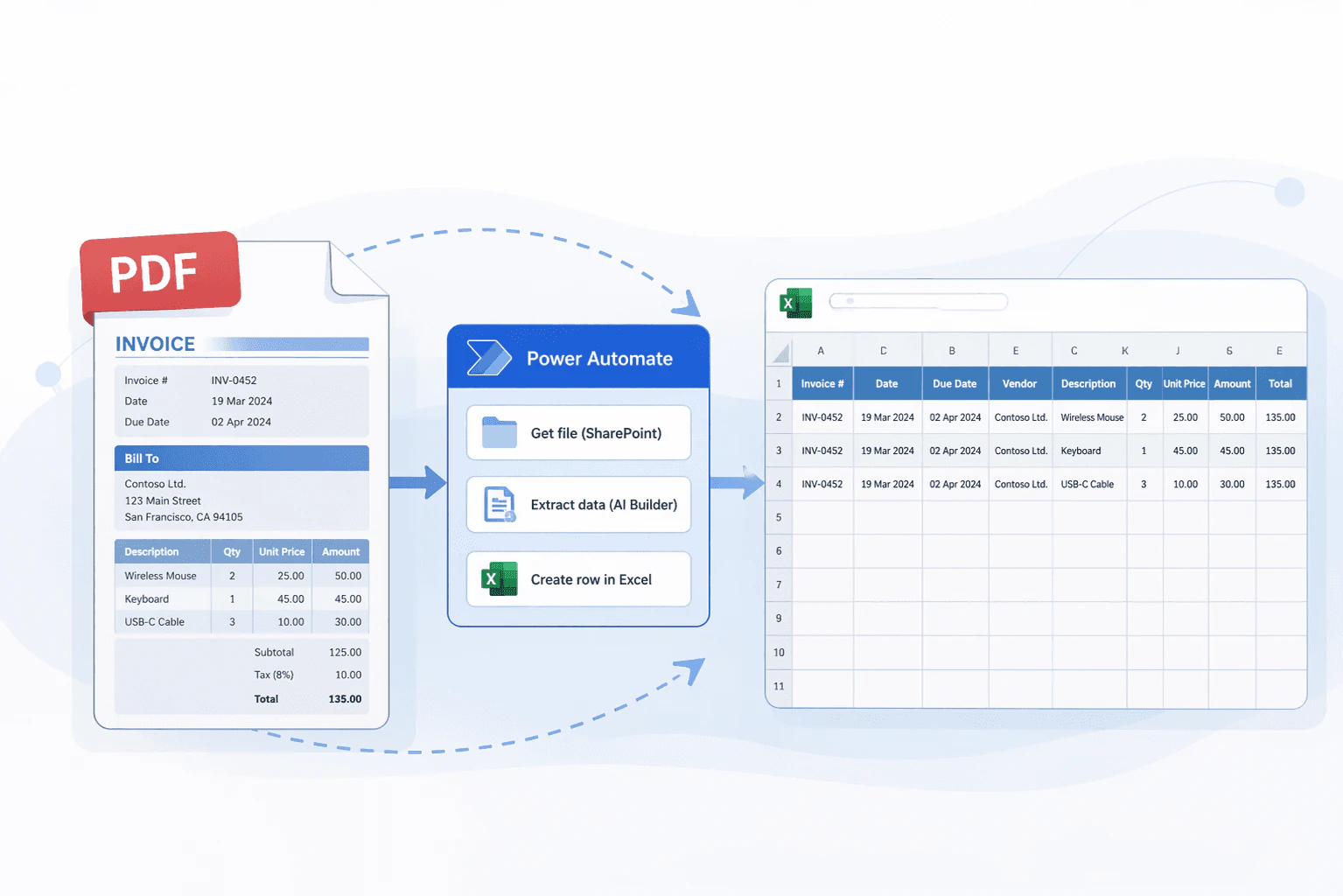
This guide shows how to extract structured information from invoices in Power Automate using an AI model. By the end, you’ll have an invoice processing flow that can write extracted data to Excel, Dataverse, SQL, or SharePoint. We’ll also set up a human-in-the-loop step to review uncertain predictions.
For broader accounts-payable process design, start with How to Automate Invoice Data Extraction with AI in 2026. If your workflow needs to handle PDFs beyond invoices, use the companion guide on extracting data from PDFs in Power Automate.
For a product overview of the Microsoft-specific setup, see Power Automate invoice data extraction.
By the end, you’ll have a flow like the diagram below:
Before we start
You’ll need:
- A Microsoft account with a Power Automate license
- A Cradl AI account
Step 1: Set up your AI agent
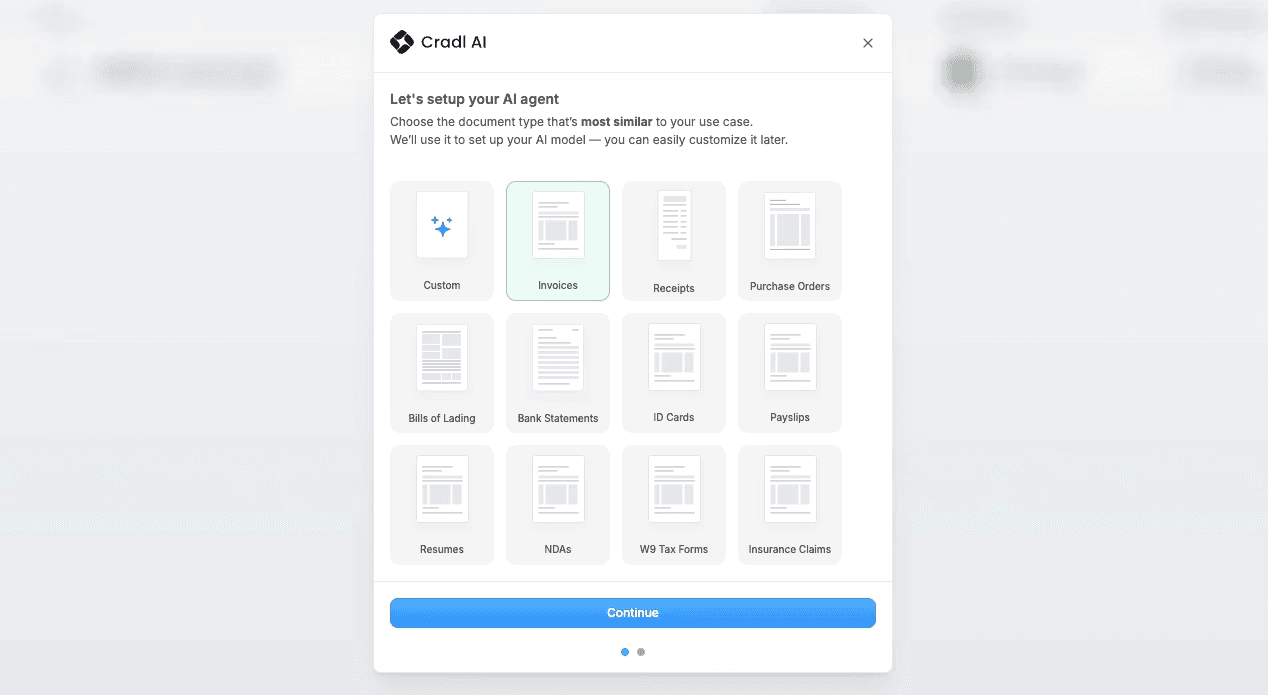
In Cradl AI, choose Invoices in the onboarding dialog. This simply gives you a starting point with a set of predefined fields. You can customize the fields to fit your exact requirements at any time. For now, we’ll stick with the auto-generated ones to keep things simple.
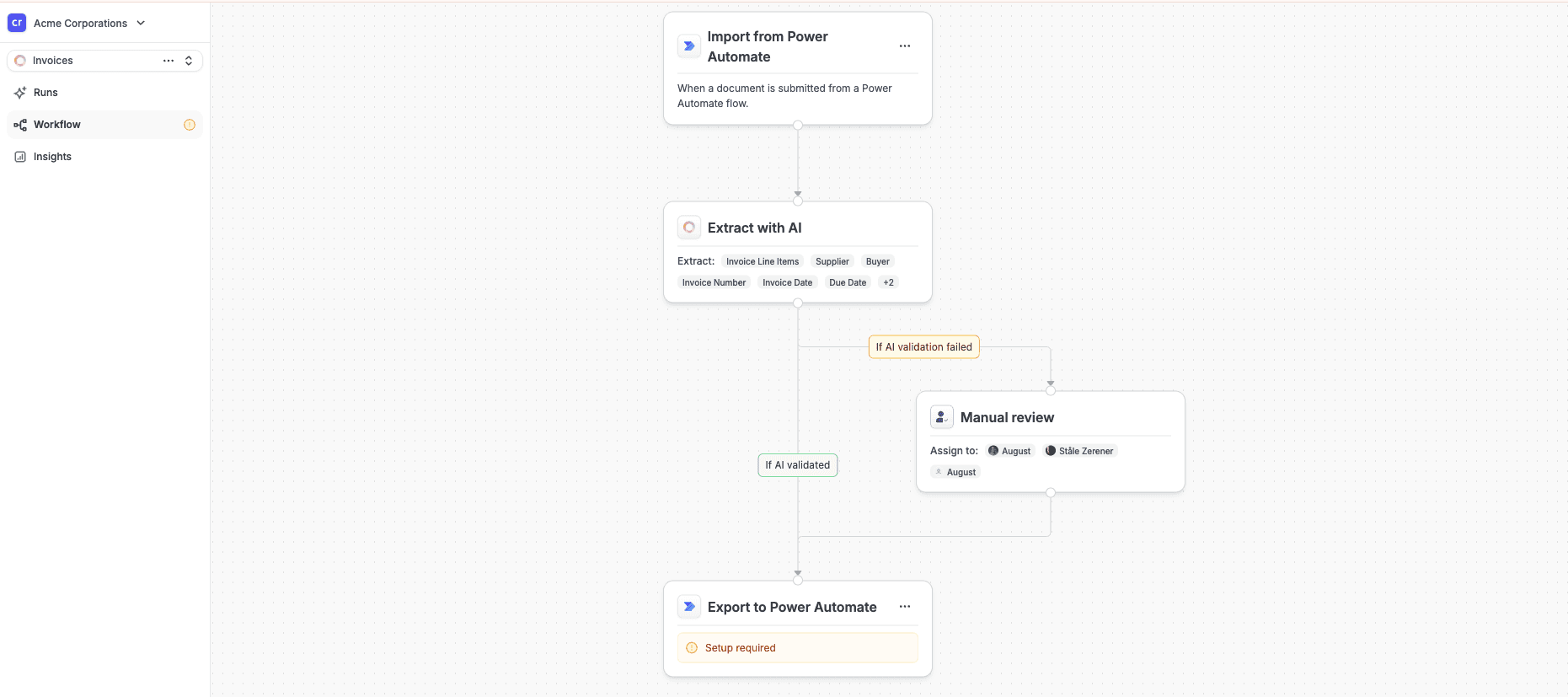
Next, go to the Workflow tab and add both a Power Automate trigger and a Power Automate export. When you’re done, your workflow should look something like this:
Step 2: Create a connection
Next, head over to Power Automate and either open an existing flow or create a new one.
In this example, we’ll assume invoices arrive by email and that we want to write the extracted data to an Excel sheet. In a real-world setup, you’d likely send the data to an ERP system or store it in something like a Dataverse table, but we’ll use Excel here to keep things simple.
To connect Cradl AI to your Power Automate flow, add a new action and search for “Extract data from document.” Select it, then create a new connection to your Cradl AI account:
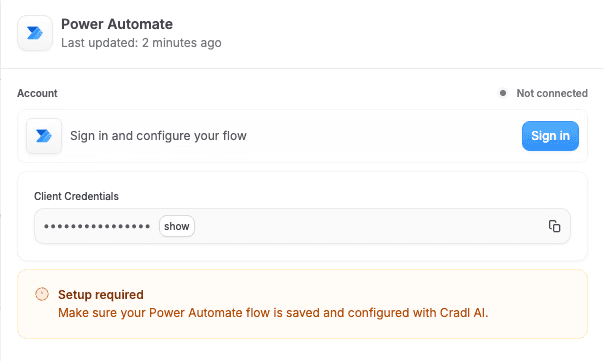
In Cradl AI, go to Workflows, click Export to Power Automate, and copy the Client Credentials. Then paste those credentials into the Client Credentials field in Power Automate.
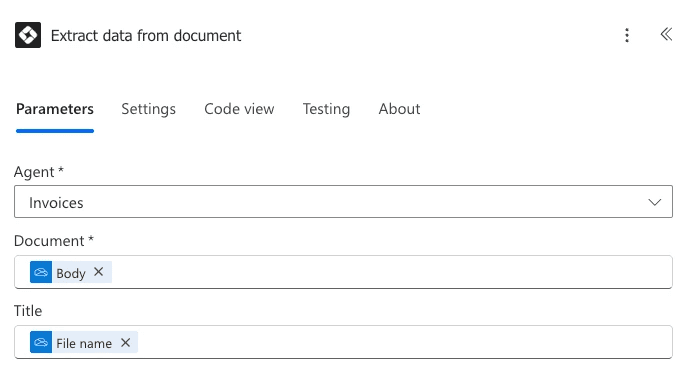
Next, configure the Extract data from document action. Select your newly created Invoices agent from the dropdown. For the Document field, choose the Content Bytes variable from the Download the email attachment step.
Step 3: Build the Power Automate flow
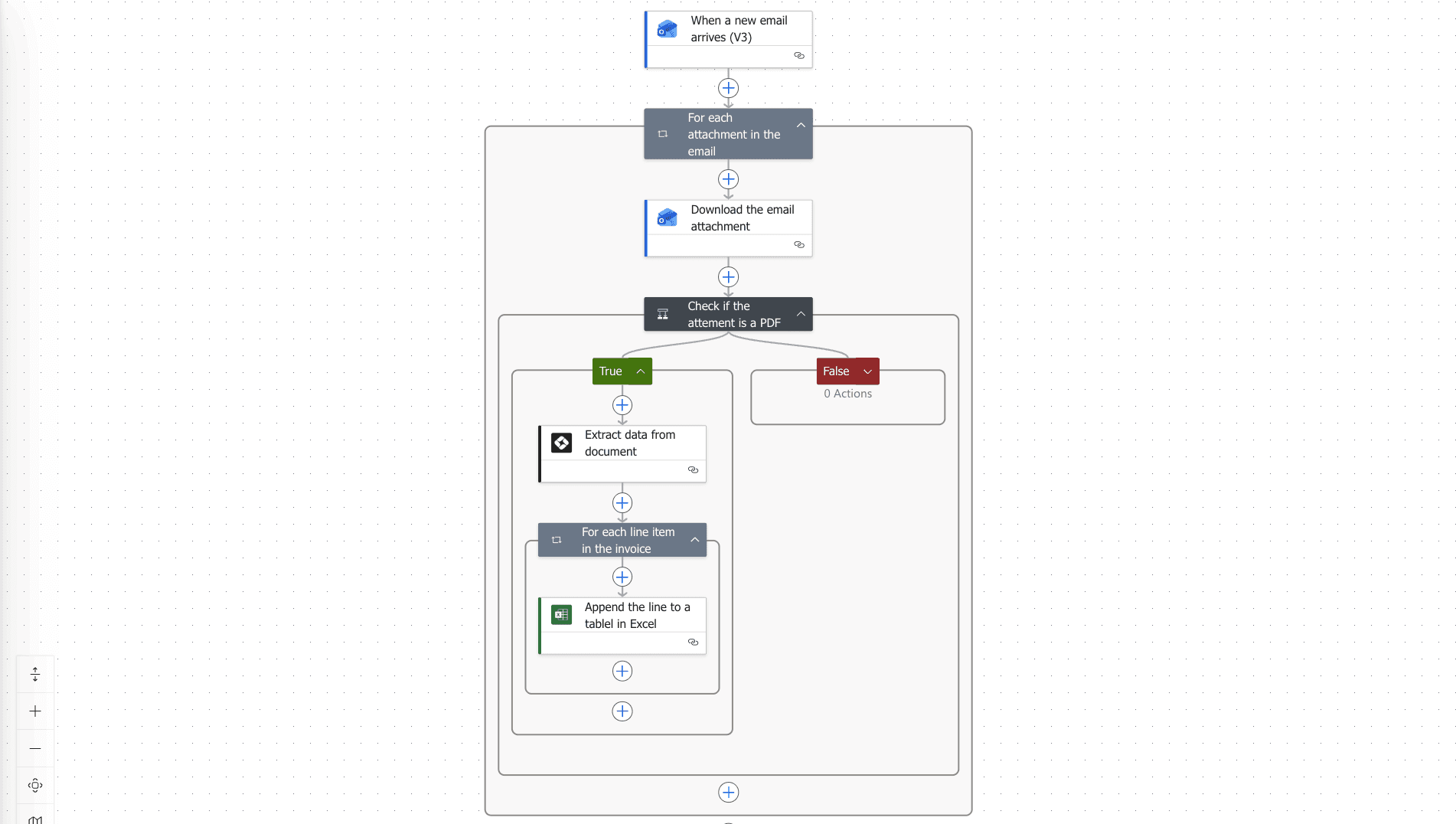
Now let’s put everything together by building a Power Automate flow that:
- Retrieves emails from Outlook
- Downloads any PDF attachments
- Sends those attachments to Cradl AI for processing
- Writes the extracted data to an Excel sheet
When we’re done, your flow will look like the diagram below. If you’d rather skip ahead, you can download the complete Power Automate solution from the Power Automate integration page and start using it right away.
Here’s how to configure each action:
When a New Email Arrives (V3): In the trigger, enable Include Attachments. You can also enable Only with Attachments to ensure the flow only runs for emails that actually contain attachments.
Get Attachment (V2): Use the Message ID and Attachment ID from the previous step. Because Attachments is an array, Power Automate will automatically create an Apply to each loop, so the flow runs once for every attachment on the email.
Condition: Next, add a Condition to avoid processing unnecessary files. In this example, we only want to process PDFs, so configure the condition to continue only when the Content-Type equals application/pdf.
Extract Data from Document: Select the agent you created earlier and map the downloaded attachment from the previous step as the document input.
Add a Row into a Table: Finally, append the extracted data to your Excel table. Select the appropriate workbook and table, then map each extracted field to the corresponding column.
Step 4: Take it for a spin!
Now you’re ready to test the flow. Because we set it up to process invoices received by email, send a sample invoice to the email address you configured and make sure everything runs as expected:
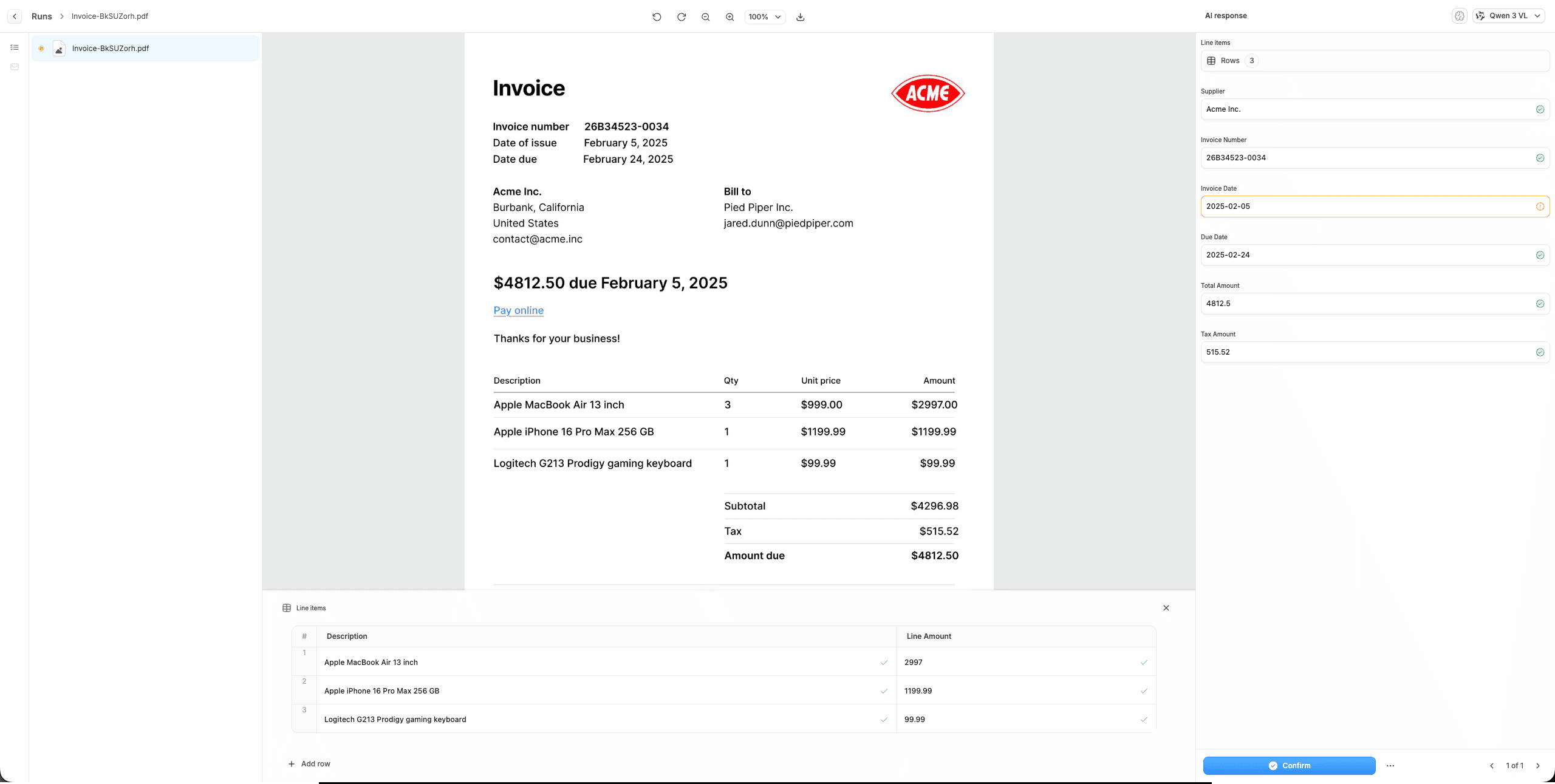
Since this is the first document being processed, the AI will be conservative about what it approves automatically. In this case, you might be asked to confirm that the invoice date was interpreted correctly. After you’ve validated a few invoices, the AI will become more confident over time. You can also adjust the automation thresholds manually if you want more, or less, automatic approval.
For the reasoning behind confidence-based review, see Using LLMs for OCR and PDF Parsing.
Wrapping up
That’s all you need to build a basic invoice processing pipeline in Power Automate using Cradl AI.
The next step is to add more advanced processing and validation logic. For example, you can match invoices against purchase orders to automatically verify amounts, line items, or vendors. This helps you build a more robust and reliable accounts payable process, with fewer manual checks and fewer surprises downstream.
If your team prefers n8n, the same pattern is covered in the n8n invoice extraction workflow guide.