How to Extract Data From Invoices in n8n
Build a production-ready invoice processing workflow in n8n with AI-powered invoice extraction, validation, and human-in-the-loop review.
Ståle Zerener
Co-founder & CEO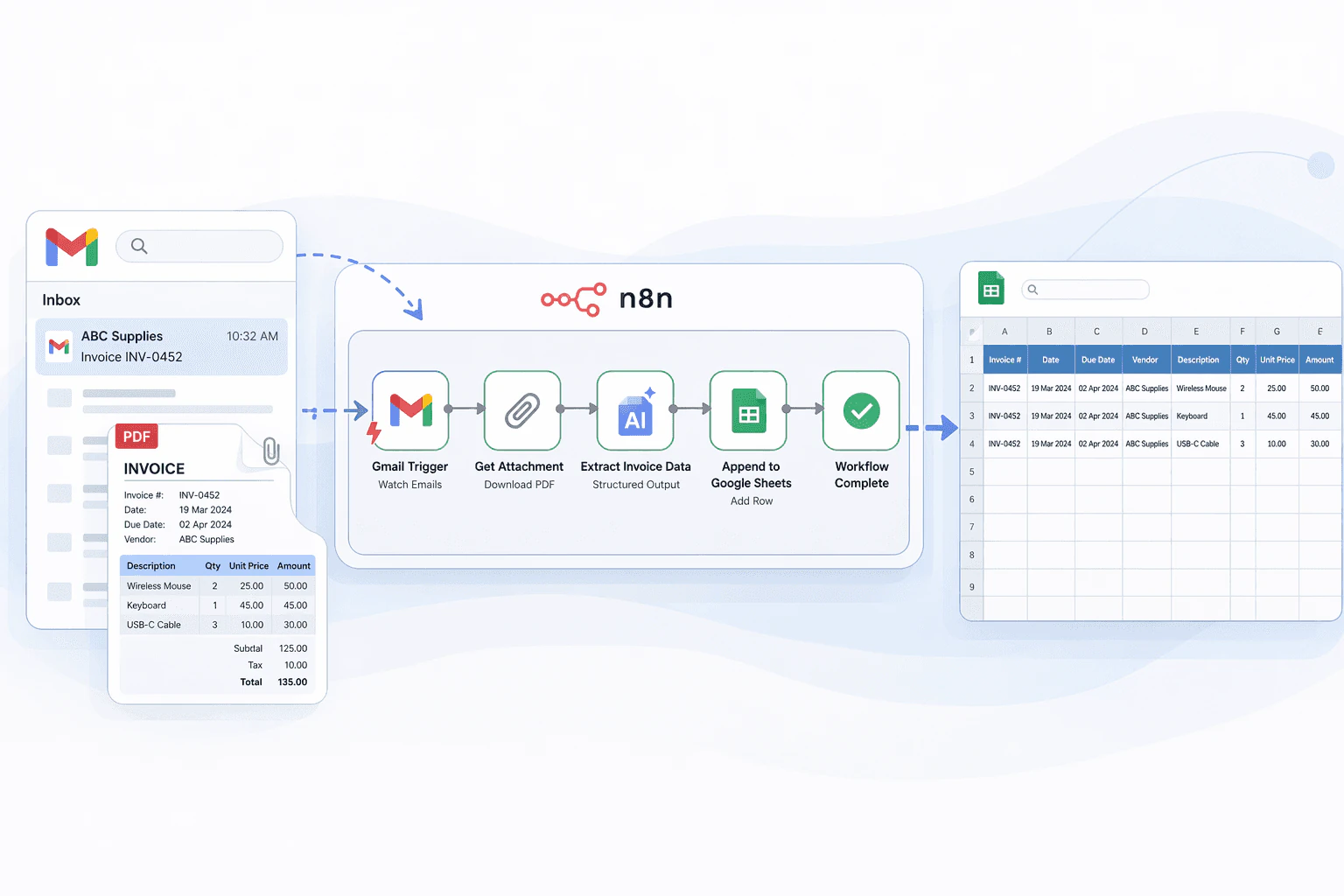
Manually keying in invoice data is slow, error-prone, and not a great use of anyone’s time. In this guide, we’ll build an n8n workflow that automatically extracts key information from invoices.
The workflow pulls invoices from email, uses AI to extract fields like invoice number, date, line items, and totals, and writes the structured data to a spreadsheet. It also includes human-in-the-loop validation, so you can review and correct extractions before they’re committed, making it suitable for production use cases.
For the broader process design behind this workflow, see How to Automate Invoice Data Extraction with AI in 2026. If you are comparing no-code platforms, Cradl AI also has a Power Automate invoice extraction guide.
By the end, you’ll have a fully automated invoice processing pipeline up and running in under 10 minutes — no code required. Watch the video below or follow the step-by-step guide to get started.
What we’ll build
The workflow we’ll set up in this guide comes with the following key features:
| Feature | Included |
|---|---|
| Document data extraction Automatically pulls structured fields from invoice PDFs and images using AI |
✅ |
| Automatic validation of extracted data Flags extractions that don’t meet confidence thresholds before they propagate. |
✅ |
| Human-in-the-loop validation Uncertain predictions are routed for manual review, so errors don’t slip through. |
✅ |
| Automatic retraining Corrections you make are fed back into the model, so accuracy improves over time. |
✅ |
1. Clone the n8n workflow
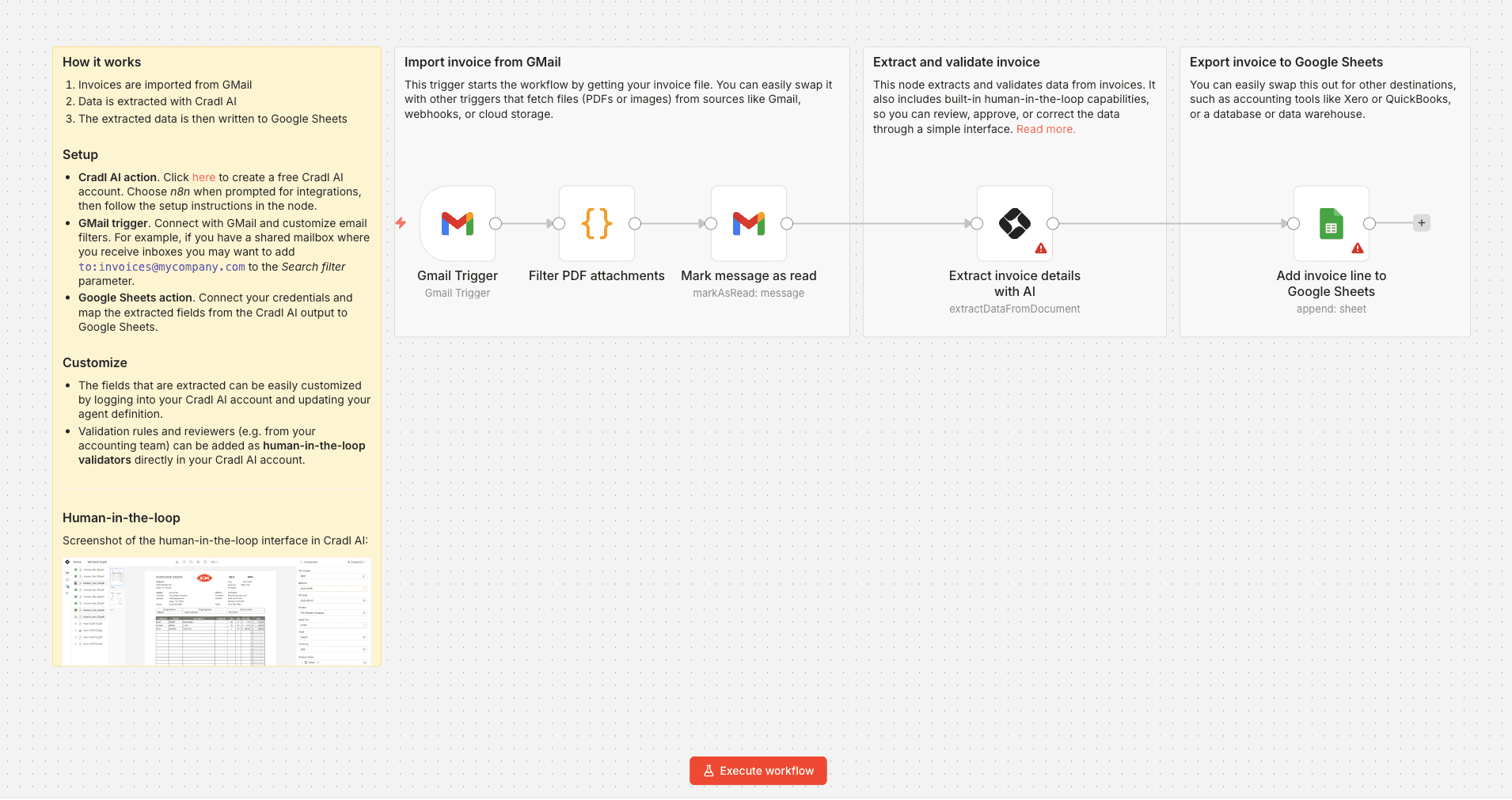
To get started, clone the n8n workflow template using the button below and paste it into a new, empty workflow in n8n.
This guide is the hands-on companion to the Cradl AI n8n integration.
Once imported, your workflow should look something like this:
2. Clone the Cradl AI agent
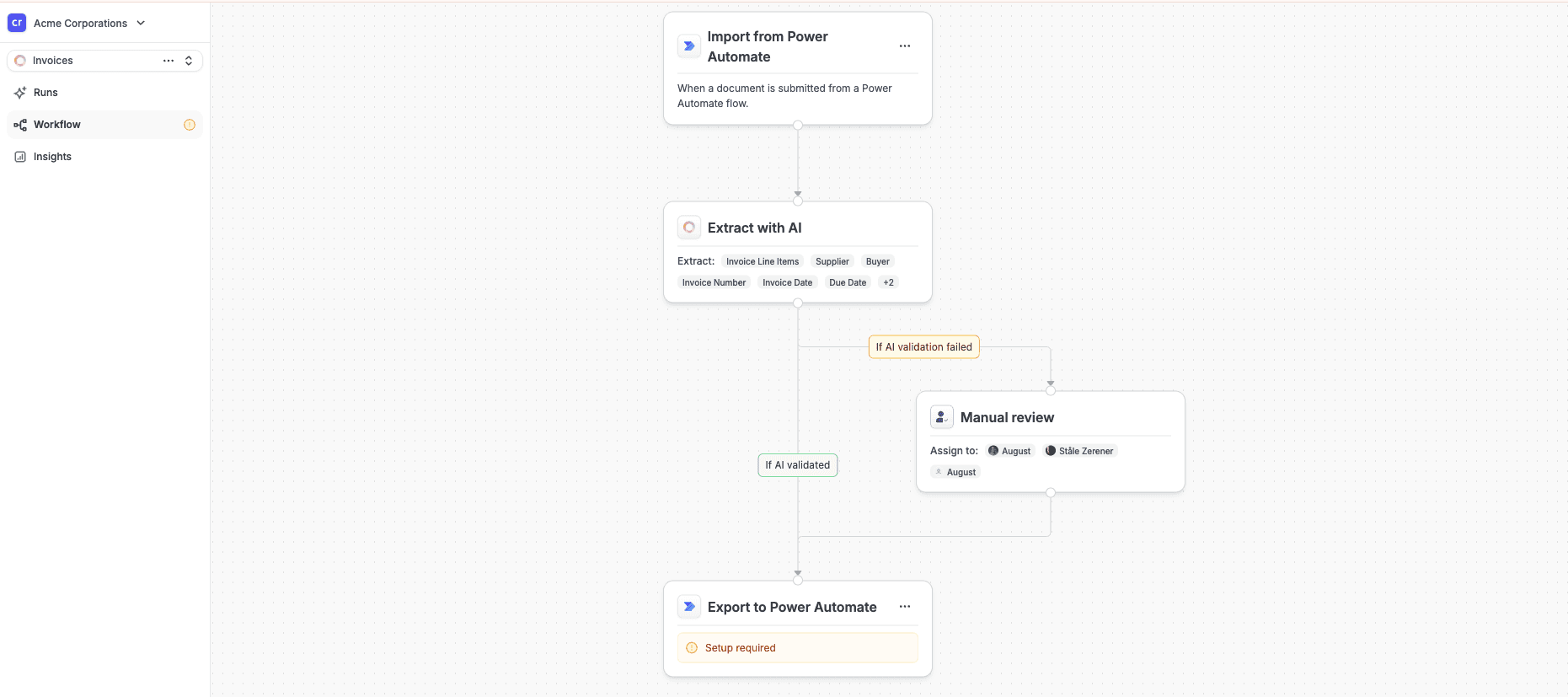
Click below to clone a Cradl AI invoice extraction agent. If you don’t have an account yet, one will be created for you automatically.
Once cloned, your agent should look something like this:
3. Configure the nodes
To get the workflow up and running, you’ll need to configure credentials for three nodes:
Cradl AI Double-click the Cradl AI node in n8n and enter your credentials. You’ll find them in your Cradl AI account under the n8n trigger settings. Copy in the Client ID and Client Secret, then select your agent from the dropdown.
Gmail Connect your Gmail account and set up email filters to match your setup. If you have a shared inbox for invoices, for example, add to:invoices@mycompany.com to the Search filter parameter. This node can also be swapped out for OneDrive, Google Drive, or any other trigger that fits your use case.
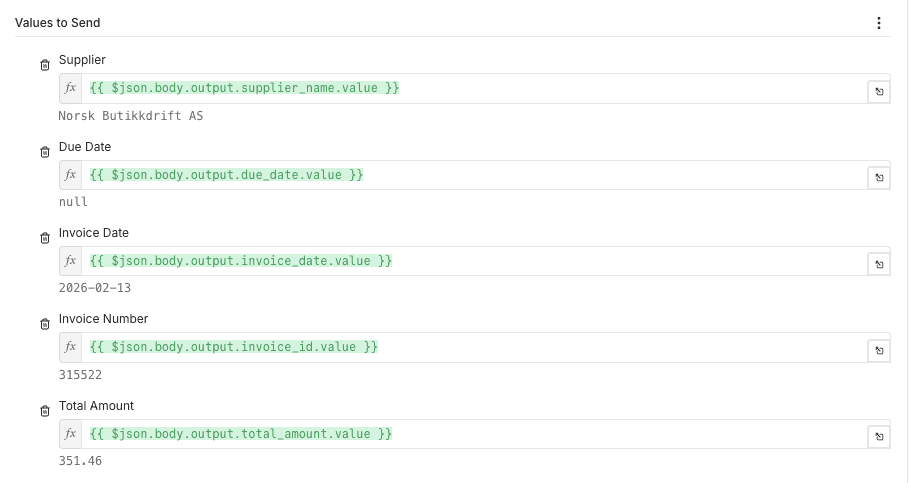
Google Sheets Connect your Google account and map the fields extracted by Cradl AI to the corresponding columns in your spreadsheet. When you’re done, it should look something like this:
4. Take it for a spin!
With everything configured, you’re ready to take it for a spin. Send a sample invoice to the email address you set up, and the workflow will kick off automatically.
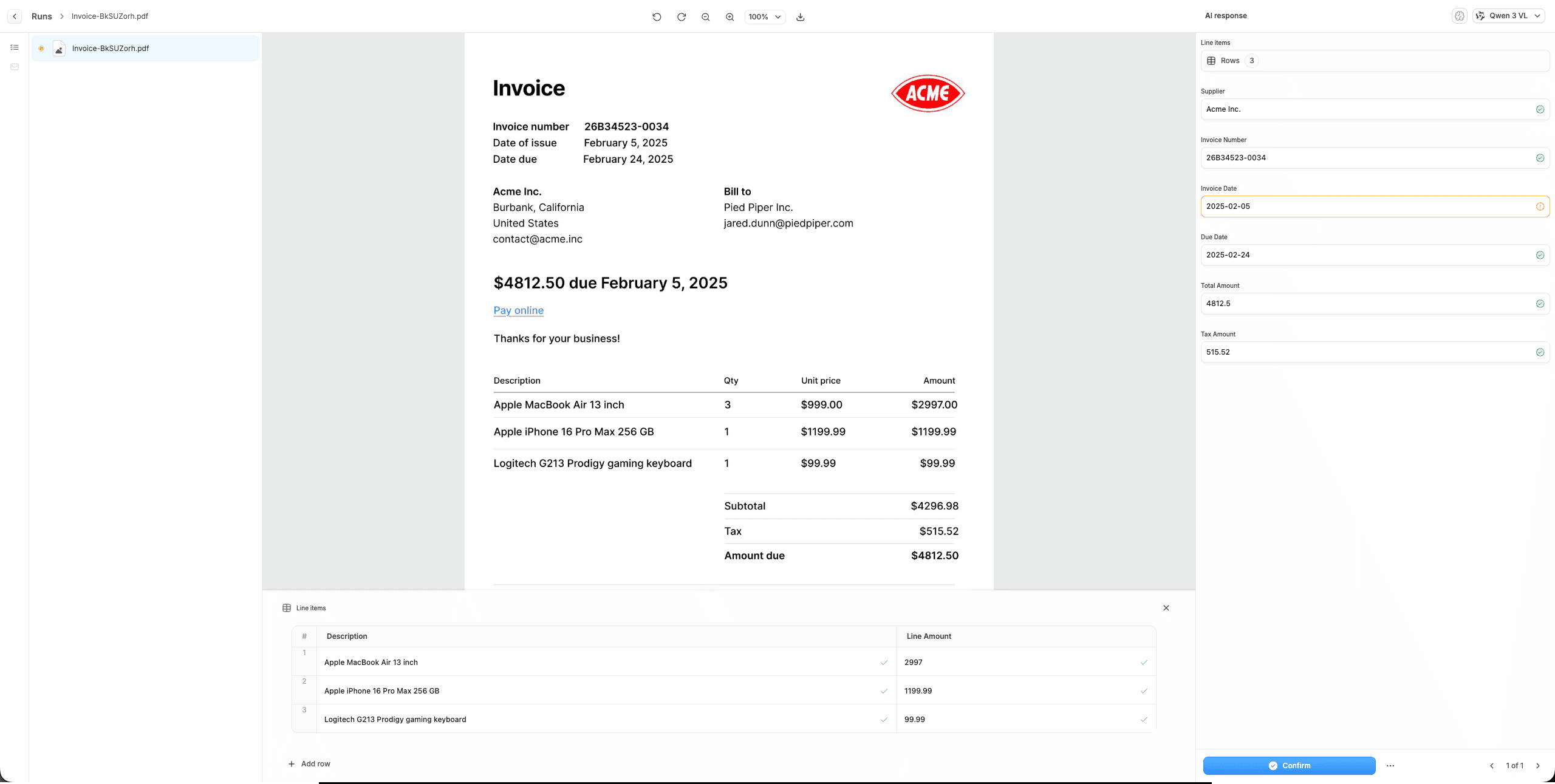
On your first run, the AI will be conservative about what it approves automatically, so don’t be surprised if you’re asked to confirm the extracted values. This is expected behavior. As you validate more documents, the model becomes more confident and fewer extractions will require manual review.
For more on why this review step matters in LLM/OCR workflows, see Using LLMs for OCR and PDF Parsing.
If you want to speed up this process, or dial back automatic approvals, you can adjust the automation thresholds manually in Cradl AI.
Wrapping up
That’s all it takes to build a fully automated invoice processing pipeline in n8n. From Gmail to structured, validated data in Google Sheets with no code required.
From here, the natural next step is to add more advanced processing logic. For example, you can match extracted data against master data from a SQL database to validate suppliers, PO numbers, or line items. The more validation logic you add, the more reliable the process becomes — and the fewer manual checks you’ll need downstream.